
 Posted By
Bajarangi soft ,
Posted On 01-10-2020
Posted By
Bajarangi soft ,
Posted On 01-10-2020
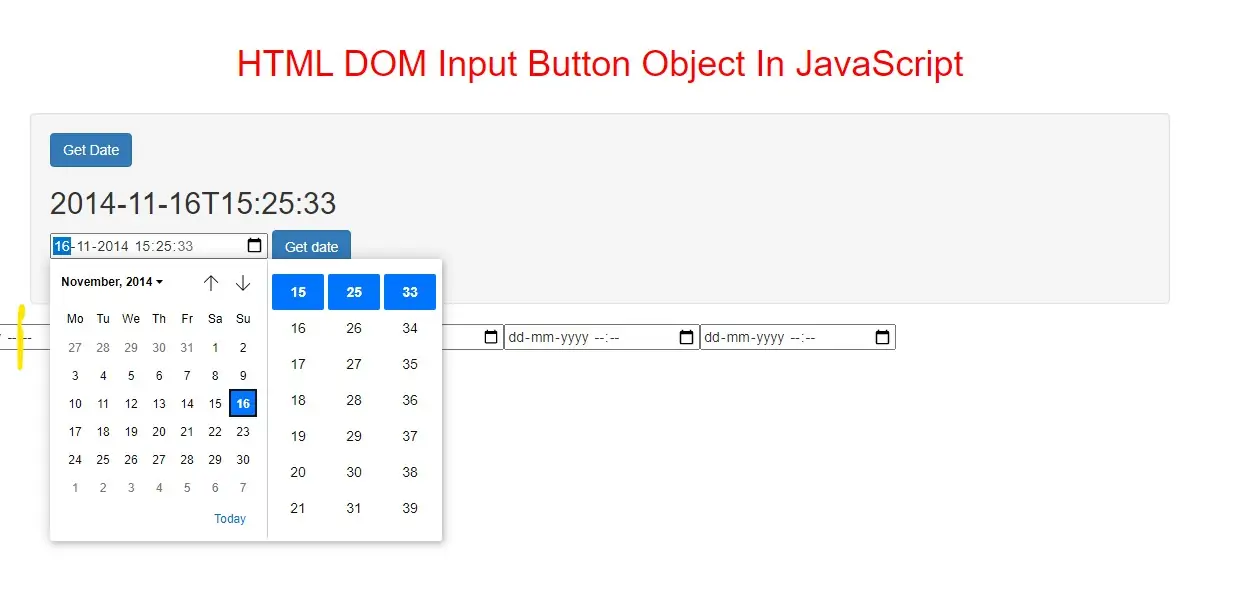
Input DatetimeLocal Object
The Input DatetimeLocal object represents an HTML <input> element with type="datetime-local".
Note: <input> elements with type="datetime-local" do not show as any datetime field/calendar in Firefox or in IE12 and earlier versions.
Access an Input DatetimeLocal Object
You can access an <input> element with type="datetime-local" by using getElementById():
Example(1)
<input type="datetime-local" id="myLocalDate" value="2014-11-16T15:25:33">
<button class="btn btn-primary" onclick="get_date()">Try it</button>

<h2 id="demo"></h2>

<script>
    function get_date() {
        var x = document.getElementById("myLocalDate").value;
        document.getElementById("demo").innerHTML = x;
    }
</script>
You can also access <input type="datetime-local"> by searching through the elements collection of a form.
You can create an <input> element with type="datetime-local" by using the document.createElement() method:
<button class="btn btn-success" onclick="get_date1()">Get Date</button>

<script>
    function get_date1() {
        var x = document.createElement("INPUT");
        x.setAttribute("type", "datetime-local");
        document.body.appendChild(x);
    }
</script>
<!DOCTYPE html>
<html>
<head>
    <title>Use HTML DOM Input DatetimeLocal Object In JavaScript</title>
    <meta charset="utf-8">
    <meta name="viewport" content="width=device-width, initial-scale=1">
    <link rel="stylesheet" href="https://maxcdn.bootstrapcdn.com/bootstrap/3.4.1/css/bootstrap.min.css">
</head>
<style>
    #myLocalDate{
        margin-left: 0px !important;
    }
    h1{
        color: red;
    }
</style>
<body>
<div class="container">
    <br>
    <br>
    <div class="text-center">
        <h1>Use HTML DOM Input DatetimeLocal Object In JavaScript</h1>
    </div>
    <br>
        <div class="well">
            <button class="btn btn-primary" onclick="get_date()">Get Date</button>

            <h2 id="demo"></h2>
            <input type="datetime-local" id="myLocalDate" value="2014-11-16T15:25:33">
            <button class="btn btn-primary" onclick="get_date1()">Get date</button>
            <h2 id="demo"></h2>
        </div>
    <div>
</body>
</html>
<script>
    function get_date() {
        var x = document.createElement("INPUT");
        x.setAttribute("type", "datetime-local");
        document.body.appendChild(x);
    }
    function get_date1() {
        var x = document.getElementById("myLocalDate").value;
        document.getElementById("demo").innerHTML = x;
    }
</script>
Input DatetimeLocal Object Properties
| Property | Description |
|---|---|
| autocomplete | Sets or returns the value of the autocomplete attribute of a local datetime field |
| autofocus | Sets or returns whether a local datetime field should automatically get focus upon page load |
| defaultValue | Sets or returns the default value of a local datetime field |
| disabled | Sets or returns whether a local datetime field is disabled, or not |
| form | Returns a reference to the form that contains the local datetime field |
| list | Returns a reference to the datalist that contains the local datetime field |
| max | Sets or returns the value of the max attribute of the local datetime field |
| min | Sets or returns the value of the min attribute of the local datetime field |
| name | Sets or returns the value of the name attribute of a local datetime field |
| readOnly | Sets or returns whether the local datetime field is read-only, or not |
| required | Sets or returns whether the local datetime field must be filled out before submitting a form |
| step | Sets or returns the value of the step attribute of the local datetime field |
| type | Returns which type of form element the local datetime field is |
| value | Sets or returns the value of the value attribute of a local datetime field |
Input DatetimeLocal Object Methods
| Method | Description |
|---|---|
| stepDown() | Decrements the value of the datetime field by a specified number |
| stepUp() | Increments the value of the datetime field by a specified number |